
Creating a Provider
Providers
A Provider in Everworker is your configuration template for connecting to any external API or service. Creating a Provider sets up all access, authentication, and basic structural information for future connectors and workflow nodes.
This guide describes parameters and fields you’ll find in the Provider creation screen.
Provider Creation Fields
1. Choose File (OpenAPI Specs, optional)
Purpose:
Allows you to import the API schema automatically via OpenAPI/Swagger file.
How To:
Click the file picker and upload the .json or .yaml file provided by the API owner.
2. Title
Purpose:
Friendly name for this Provider, easily readable and unique within your workspace.
Example:
Salesforce Prod, HubSpot Demo, Custom Private API
3. Summary
Purpose:
A one-line summary or tag-line for the Provider’s function.
Example:
Main integration with HubSpot for contacts and deals.
4. Description
Purpose:
Longer-form detail on the Provider, use it to explain usage, scope, or internal notes.
Example:
This Provider handles all core CRM object endpoints for our marketing automation workflows. Use only with admin-scoped secrets.
5. Global ID
Purpose:
A unique machine-readable identifier for this Provider. Used by connectors and code—usually lowercase, no spaces.
Example:
hubspot.crm, mycompany.privateapi
6. Version
Purpose:
String to track API/provider versioning for upgrade and compatibility control.
Example:
v1.0, 2023-04, beta
7. Servers (Add Server)
Purpose:
Add one or more base URLs ("servers") that your API uses.
How To:
Click Add Server and enter each base URL, for example https://api.hubapi.com.
If the API is available in multiple regions or for different environments (test/prod), add all needed.
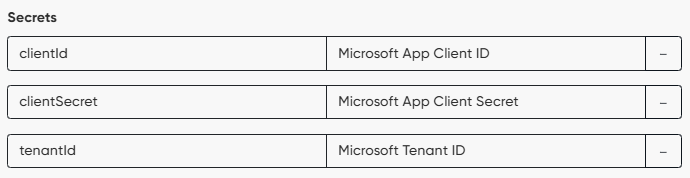
8. Secrets (Add Secret)
Purpose:
Add one or more secrets that need to be passed along with the request, to authorize it.
How To:
Click Add Secret and enter its name.
Example for Microsoft API using application secrets
Example for Hubspot API using bearer token
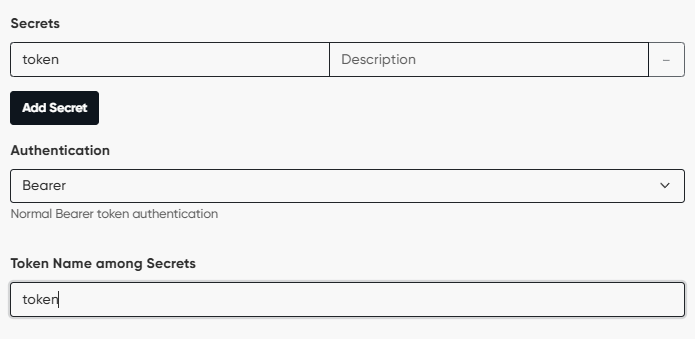
NB! Do not enter secret values here: the secret values will be added to the connector created from this provider (See Creating a Connector article).
9. Authentication
Controls how your Provider will add credentials to each API call, selecting how Everworker inserts the relevant secret.
The following options are available:
- Header — custom header. Example:
x-api-key: <value> - Bearer — Most OAuth2, some API tokens, e.g.
Authorization: Bearer <value> - Basic — Base64-encoded username:password, e.g.
Authorization: Basic <base64> - Query — As a query param in URL, e.g.
?api_key=value - Special — Customer/integrated schemes, e.g. HMAC, JWT or other custom scripts.
10. OAuth Configuration
If you select OAuth-based authentication, you’ll configure these specific fields:
Default Authentication Mode
- App token: Uses a global credential for all calls (no per-user auth flow).
- User OAuth: Each user completes OAuth and gets their token.
- Hybrid: Combines app credentials (
client_id/client_secret) with per-user tokens (sometimes required for enterprise APIs).
OAuth Scopes
- The permissions explicitly requested from the API (comma or space separated).
- Example:
contacts.read deals.write
Custom Authorization URL (Optional)
- If API provider uses a non-standard authentication initiation URL, specify here.
Custom Token URL (Optional)
- If exchanging a code/token is done via a non-standard endpoint.
Best Practices
- Always use Secrets—never paste actual credentials in the Description or Summary.
- Use precise names and Global IDs so future maintainers can easily reference them.
- For OAuth (User or Hybrid mode), always verify the flow works from the end-user experience and that tokens are stored and refreshed.
- You can update Provider configuration at any time if API endpoints or credentials change.
Updated 6 months ago